Photo to desk-concert video
How to Make a Tiny Desk AI Video: Photos, Costs & Fixes
Make a Tiny Desk AI video with the right play, photos and quality. See current credits, role order, real examples, upload errors and output review fixes.
This English research and replication guide was checked against the cited public sources and MakeHit’s current Tiny Desk configuration. It does not report a new generation test.
Quick start: from one photo to a vertical MP4
For the simplest first version, open Create, keep the default Lead + Sax play, add one authorized lead portrait and choose Standard 480p. Prepared performers fill eligible empty band seats.
- 01
Open Create
Go directly to the current Tiny Desk AI controls. Browsing and choosing photos are free.
- 02
Pick a play
Choose 8s Solo, 10s Lead + Sax or 15s Full Desk Jam. The play fixes the sequence and prepared audio.
- 03
Add the cast
Add a lead portrait, optional member photos or one ordered group image in the lead slot.
- 04
Download & post
Choose 480p for 10 credits or 720p for 20, submit, watch the whole MP4 with sound, then download and post manually.
Generation requires an account and enough paid credits. There is no custom song, motion upload or free-form performance prompt.
Choose the shot sequence before choosing photos
Current MakeHit choices, rechecked November 13, 2026. The prepared plays are not interchangeable duration settings for one continuous clip.
| Play | Target & sequence | One per member inputs | Group-photo roles |
|---|---|---|---|
| Lead + Sax Solo Cut | 10s · lead close-up, then sax with keyboard/foreground | Lead required; sax and keyboard optional | 1 lead · 2 sax · 3 keyboard/foreground |
| Full Desk Jam & Big Laugh | 15s · full band, lead close-up, then sax finish | Lead required; sax, keyboard and two backups optional | 1 lead · 2 keyboard · 3 sax · 4 left backup · 5 right backup |
| Solo Lead Vocal Spotlight | 8s · short band opening, then sustained lead close-up | Lead only; separate bandmate slots do not apply | Only the one lead-slot image is submitted; no separate member slots |
Pick Lead + Sax when the singer and the instrumental answer are the punchline. Use Full Desk Jam when the ensemble and two backup identities matter. Choose Solo Spotlight when one person should carry the joke and you do not need custom bandmates.
All three plays offer both photo modes, for six combinations. Only the three One-per-member combinations have dedicated retained previews. Group mode remains available, but no Individual clip is substituted as if it proved a Group result.
Prepare one authorized lead photo—or map the whole group from left to right
Start with the photos you actually have. This chooser maps them to a real play and mode; it is selection guidance, not a measured quality ranking.
Choose the simplest setup that preserves the identities and shot sequence you care about.
| Photos you have | Practical starting setup | Role rule to check |
|---|---|---|
| One clear portrait | Solo Spotlight (8s), or Lead + Sax with prepared bandmates | Put the person in the required lead slot. Solo uses no separate member slots; Lead + Sax can fill eligible empty seats. |
| Two or three separate portraits | Lead + Sax · One per member | Assign lead, sax and keyboard deliberately. Any eligible seat you leave empty uses a prepared performer. |
| Four or five separate portraits | Full Desk Jam · One per member | Use the lead plus any of the four eligible member slots. Empty optional seats still use prepared performers. |
| One sharp group photo | Any play · One group photo | Upload it in the lead slot. Lead + Sax and Full Desk Jam read roles left to right; Solo uses only this image. |
One per member
Start with a clear lead portrait showing the face, hair and enough upper body and clothing to guide a close-up. Add the optional sax and keyboard portraits for Lead + Sax. Full Desk Jam also accepts left-backup and right-backup portraits. Distinct faces, silhouettes and outfits make role assignments easier to inspect.
Only the lead is required. If you leave an eligible bandmate slot empty in Lead + Sax or Full Desk Jam, the prepared band member fills that role. Do not assume that Solo Spotlight uses those uploads: its member slots do not apply.
One group photo
Place all intended people in one sharp image in the order shown in the play table. Group mode uses the lead upload slot for this image and ignores no-longer-applicable separate slots. Avoid hidden, overlapping or tightly cropped people: the play assigns identities by left-to-right position, so an ambiguous order can produce the wrong role.
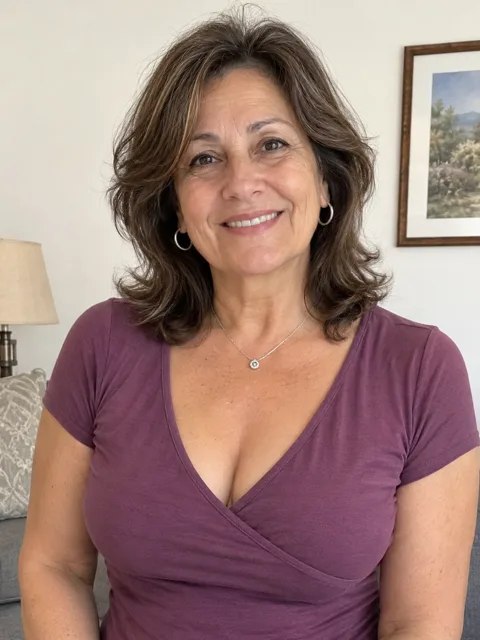
Use: clear half-body shot
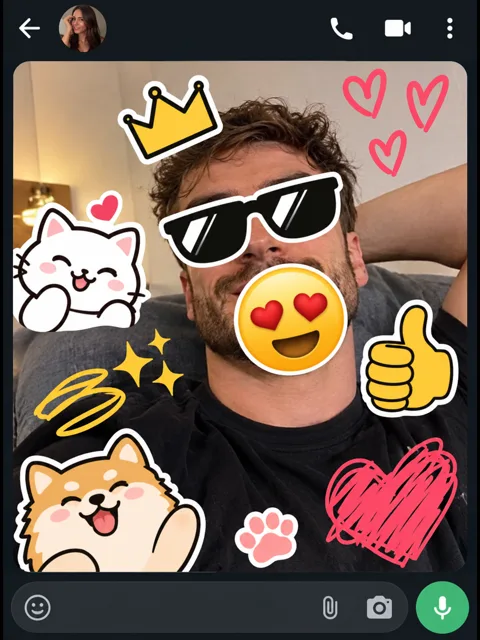
Avoid: screenshot with stickers
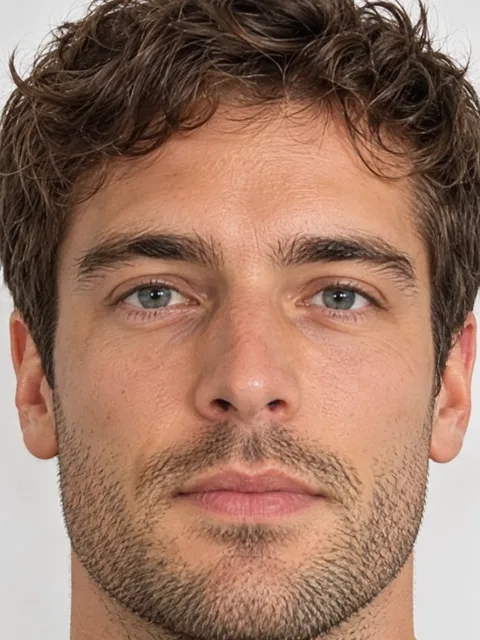
Avoid: head-only crop
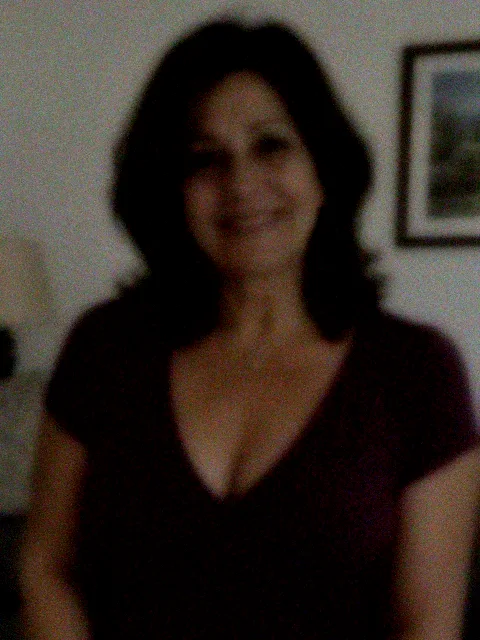
Avoid: dark or blurry
Create, review & download the vertical MP4
Set the cast
Open the Tiny Desk AI Create area, choose your play and photo mode, then place each photo in its intended role. In Group mode, put the ordered group image in the lead slot.
Confirm resolution & cost
Choose Standard 480p for 10 credits or HD 720p for 20 credits. Check the total on the submit action before you approve generation with an account.
Download & post
Let the job finish, play the entire MP4 with sound to check identities and instruments, then download and post manually with any required AI disclosure.
Output and account facts for the current tool. No fixed generation-time promise or free-generation allowance is asserted.
| Setting or state | Current behavior |
|---|---|
| Duration | 8s for Solo Spotlight · 10s for Lead + Sax · 15s for Full Desk Jam |
| Frame & audio | 9:16 vertical MP4 with play-specific prepared performance audio |
| Quality and credits | 480p = 10 credits · 720p = 20 credits, across all plays and photo modes |
| Account | Browsing examples and selecting photos are free; generation needs an account and sufficient paid credits |
| If you leave | The current workspace says the job continues in My Creations after you close the page |
| If the job fails | The failed-job view says reserved credits were returned automatically; read its error before starting another version |
Match cutA, cutB & cutC to the exact play—not to a promised new result
These three poster/video pairs are retained source-project generated examples. They show one earlier result for each play in One-per-member mode. They are not new MakeHit end-to-end tests, not Group-mode demonstrations, and not a guarantee of identity fidelity for your upload. Historical provider task IDs and model settings were not recovered.
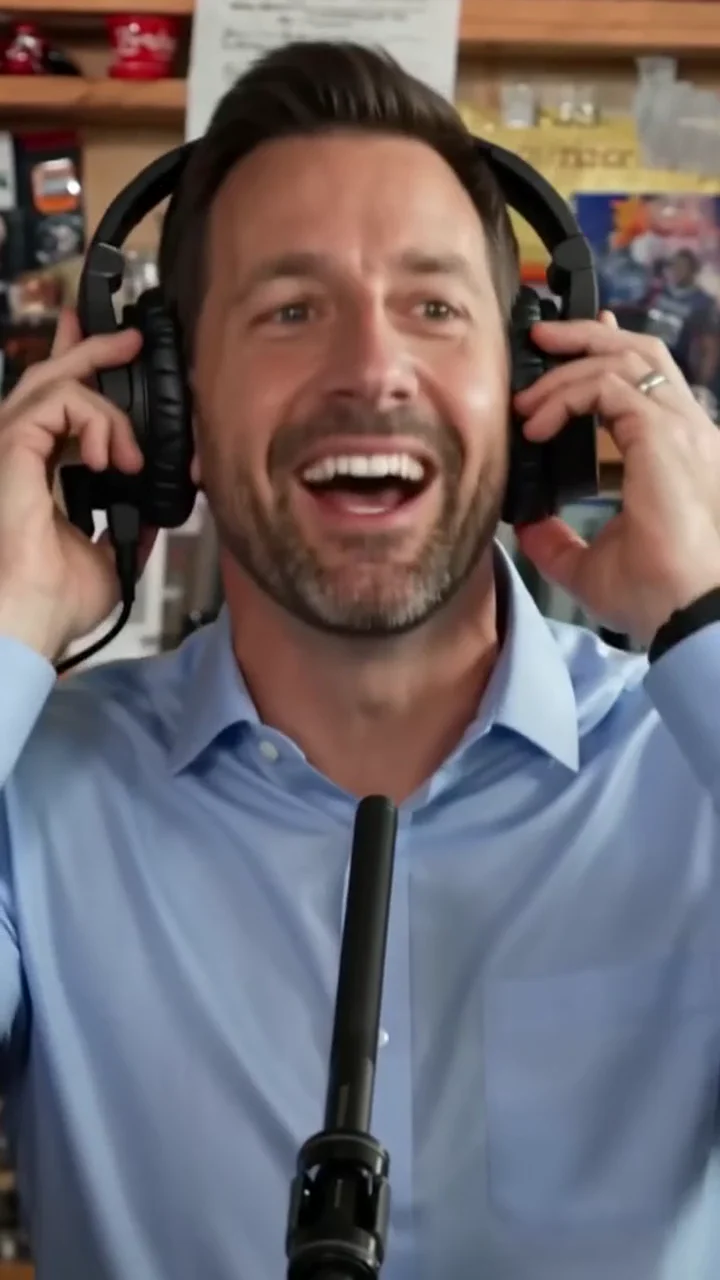
Source-project example
cutA · Lead + Sax Solo Cut
play2 · One per member · 10.000-second retained video
The matching cutA example belongs to play2 in Individual mode: a sustained lead shot followed by the sax/keyboard response. Its retained output is 720×1280.
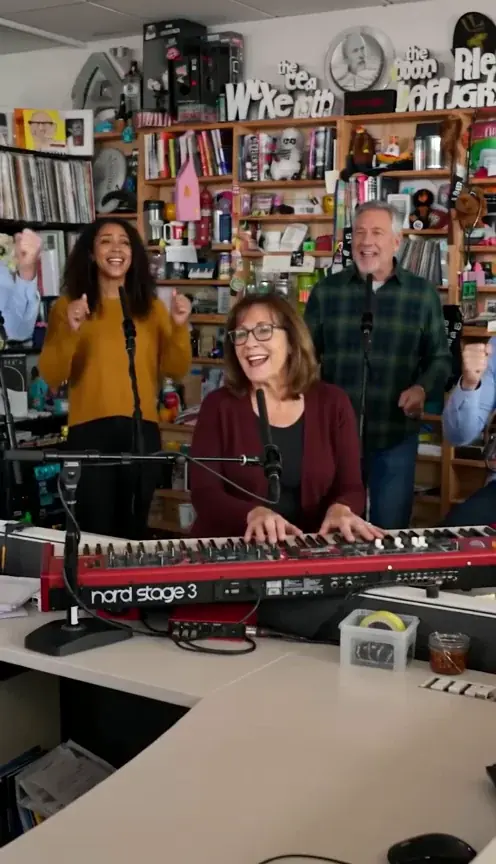
Source-project example
cutB · Full Desk Jam & Big Laugh
play3 · One per member · 15.041667-second retained video
The matching cutB example belongs only to play3 in Individual mode. It opens on the ensemble before the lead and sax moments. Its retained output is 496×864.
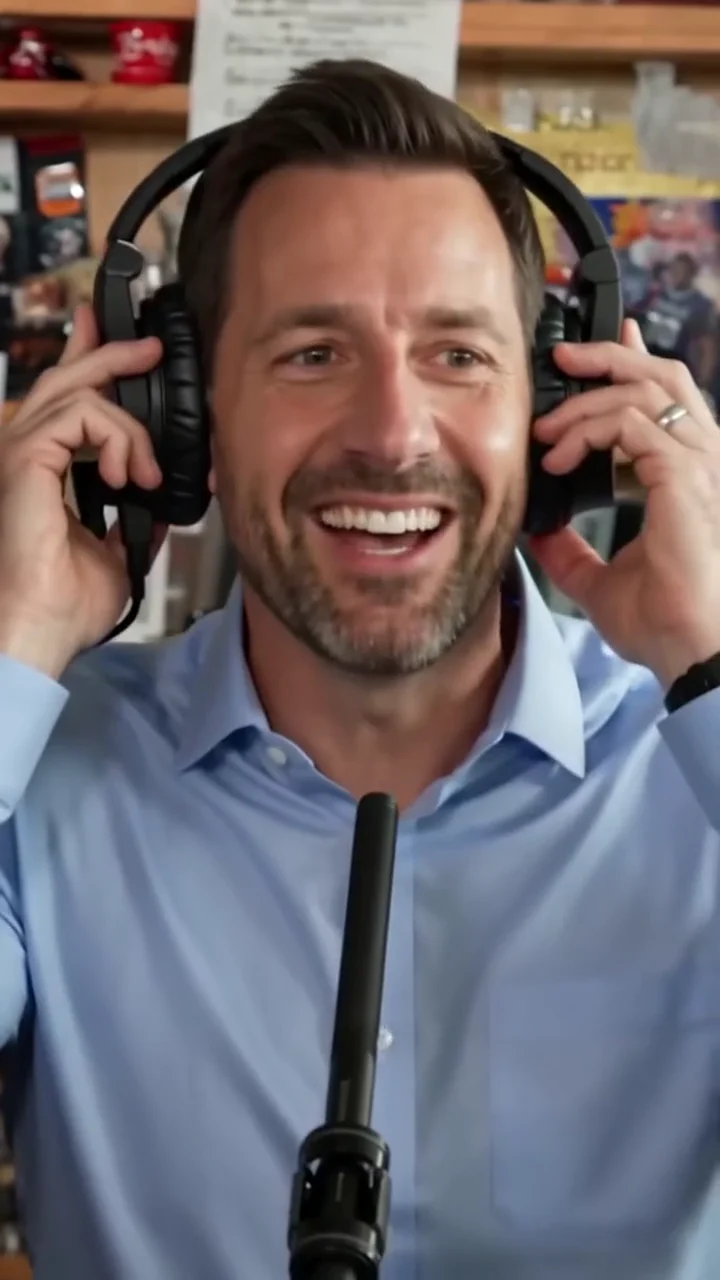
Source-project example
cutC · Solo Lead Vocal Spotlight
play4 · One per member · 8.000-second retained video
The matching cutC example belongs to play4 in Individual mode, where the brief band opening gives way to the sustained lead close-up. Its retained output is 720×1280.
Use cutA to compare the short lead/sax arrangement, cutB to inspect the full-band opening and cutC to judge the lead-only emphasis. The retained files’ precise durations differ slightly from targets where noted. The examples do not establish current processing time or whether every generated file has identical dimensions.
Review the parts a poster cannot prove
- Faces and role order: Check the lead in each close-up and every assigned bandmate. In Group mode, compare positions with the source image.
- Hands and contact: Inspect headphones, desk microphones, sax playing, red-keyboard contact and any hand movements through the shot—not just its first frame.
- Performance: Listen for the prepared vocal and instrumental route while watching mouth movement and the laugh. Confirm that the result contains a performance rather than only a static smile.
- Shot construction: Review cut timing, the full-band-to-lead transition and the ending. Each play has its own intended sequence.
- Prepared substitutes: If an individual band slot was intentionally empty, distinguish a prepared member from an identity error.
If a face changes between close-ups, begin with a sharper, less obstructed source rather than trying to write a corrective prompt—the interface does not expose one. If a role is wrong, recheck individual slot selection or the group’s left-to-right order before considering another generation.
Fix upload, cast, credit & failed-job problems in the right order
The upload and submission messages come from the current tool contract. Visual checks are decision guidance, not claims of newly reproduced failures.
| What you see | Likely boundary to check | Next action |
|---|---|---|
| “Upload the lead singer photo.” | The required dunker/lead slot is empty. | Add one valid lead image; in Group mode this is the single ordered group image. |
| “Choose a JPG, PNG or WebP photo under 10 MB.” | The browser could not supply a supported non-empty image within the file limit. | Use JPG, PNG or WebP up to 10 MB. If HEIC/HEIF conversion fails, convert it before retrying. |
| The consent validation message appears | Age/guardian and required photo permissions were not confirmed. | Confirm only when true; otherwise obtain permission or choose another image. |
| A bandmate does not appear as intended | Solo Spotlight ignores separate member slots; other roles depend on play, mode and position. | Check the play/input table. Fill an eligible individual slot or reorder the group image. |
| An unfamiliar performer fills an eligible seat | Empty optional Lead + Sax or Full Desk Jam seats use prepared performers. | Upload a separate authorized portrait if that identity matters. |
| A face changes between close-ups | The source may not give the effect a clear, consistent view of the person. | Replace the relevant photo with a sharper, front-facing half-body image without obstructions. There is no corrective prompt field. |
| You expected the full 19-second meme or a custom song | MakeHit offers fixed 8-, 10- and 15-second plays with prepared audio, not the sports edit’s full sequence or arbitrary audio. | Choose the play whose sequence you actually want. For an exact 19-second reconstruction or custom song, use a manual editing method instead of repeating the same preset. |
| Generation cannot start for credit reasons | The selected quality has a fixed cost and needs sufficient paid credits. | Confirm 10 credits at 480p or 20 at 720p and review the pricing page; do not assume photo selection is free generation. |
| The job moves to failed | Processing or final validation did not complete; the workspace displays the available error. | Read the error and credit-return message before starting a new version. Do not infer a guaranteed cause or completion time. |
Choose a preset flow or a manual edit: three checked methods
The rows below compare public workflows, not controlled outputs. Only MakeHit’s current implementation and retained example provenance were inspected in the repository. Summrs and Kapwing were checked on their public pages and were not run with the same inputs, so this guide makes no claim about their relative fidelity, speed, watermark, present price or success rate.
Use the workflow that matches your production need. Do not transfer one service’s five-photo or 19-second instructions to MakeHit.
| Method | Inputs and construction | Output described by its source | Best fit & verification boundary |
|---|---|---|---|
| MakeHit preset plays | One required lead image; selected optional member portraits or one ordered group image. Choose one prepared play and 480p/720p. | 9:16 MP4 · 8/10/15s by play · prepared audio · 10/20 credits | Inspect current MakeHit controls. Best when you want preset shot timing rather than manual editing. Three retained Individual examples exist; no new run was performed. |
| Summrs dedicated template | Five required photos: lead, three backup dancers and sax. Its template places those people into its performance. | Its public guide describes one video of approximately 19 seconds. | Read the Summrs guide. Relevant to a fixed five-person template; public-page check only, not MakeHit settings or a same-input result. |
| Kapwing multi-clip edit | Create five character references, generate four AI clips with its companion tutorial, then replace four placeholders and combine them with audio and transitions. | Its template states 720×1280 with six layers; final assembly stays editable. | Inspect Kapwing’s template. Best when manual clip generation and editing are desirable; more production steps, not a verified equivalent output. |
Publish the recast without implying it is the real concert
Describe the output as an AI-generated recast or fan edit when that context matters. Do not present a synthetic performance as a newly booked NPR appearance. Keep the original concert and the people in your version conceptually separate; a generated cast is not proof of participation or endorsement.
Before posting, confirm every uploaded likeness and review the prepared music and any visible third-party material. Photo permission alone does not clear all music or performance rights. Check the destination’s current rules for synthetic media and audio, and avoid promising commercial-use clearance.
Need the history and documented sports/family examples? Read where the Tiny Desk AI trend came from. Ready to apply the settings? Open the Tiny Desk AI tool and check the live submit total before generating.
Keep the context & the controls one click apart
Return to the source story when you need meaning and evidence; open the tool when you are ready to choose a cast.
Verification boundary: This guide records current controls and retained examples. It does not claim a fresh generation, full audio listening review, Group-mode output test, identical-input tool comparison or commercial-rights review.